Use a unique, strong password
At least 12 characters, unique to this platform. A password manager removes the temptation to reuse passwords across services.
Everything a Divvy user — new or long-time — needs to access the platform now called BILL Spend & Expense: the sign-in flow, card activation, two-factor security, and mobile app setup, step by step.
If you used Divvy before the rebrand, nothing about your account was lost. The sign-in moved to the BILL portal, and your credentials came with it.
Go to the official BILL Spend & Expense sign-in page (app.bill.com). The old Divvy domain redirects there automatically. Bookmark the final URL to avoid look-alike sites.
Use the email you registered with Divvy and your password. If your workspace enabled single sign-on (SSO), select your identity provider and authenticate through your employer instead.
Approve the push notification or type the six-digit code from your authenticator app. New devices may also receive a one-time email code.
You arrive on the dashboard with your budgets, cards, and pending receipts exactly as you left them. Admins see the same roles and permissions as before the rebrand.
Password reset: select the reset link on the sign-in page, confirm the email sent to your registered address, and choose a new password you have not used before. Reset links expire quickly, so open the email promptly.
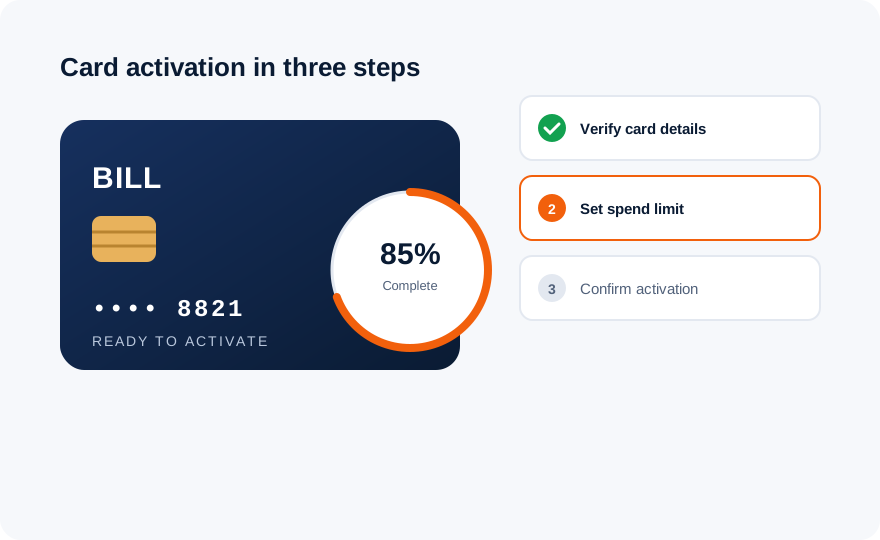
After signing in, go to Cards and select the card assigned to you. Virtual cards are ready instantly; physical cards require one-time activation.
Confirm the last four digits printed on your physical card. This pairs the card in your hand with your account and blocks mix-ups.
Review the spending limit and merchant settings your administrator configured. If anything looks wrong, fix it with your admin before spending.
Tap confirm. The card is live immediately — the first transaction appears in your feed the moment it is authorized.
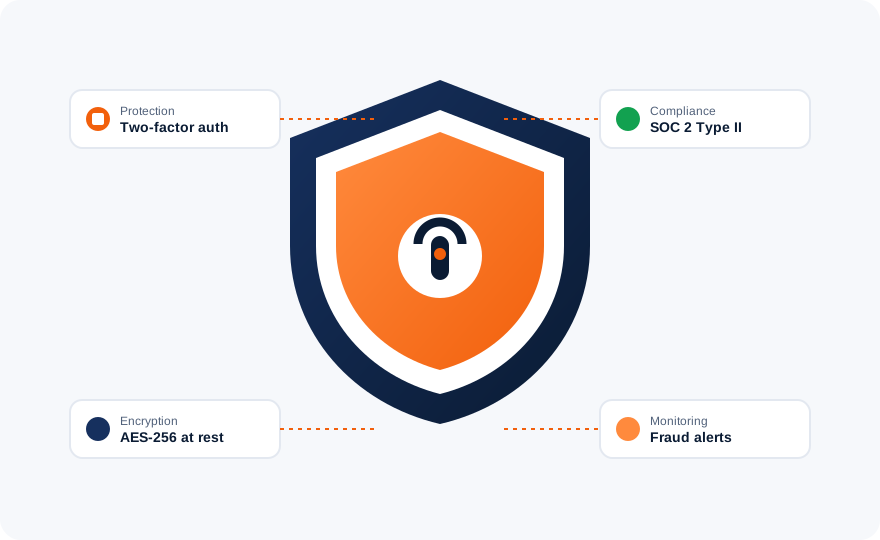
Your account controls real money. Treat its security like the finance function it is.
At least 12 characters, unique to this platform. A password manager removes the temptation to reuse passwords across services.
Prefer an authenticator app or push approval over SMS. If your workspace supports SSO, let your identity provider enforce the second factor.
Always sign in through the official BILL domain. Phishing copies of spend-management portals are common; check the address bar before typing credentials.
Periodically check the list of signed-in devices and revoke anything you do not recognize. Changing your password invalidates all sessions.
Lost phone? Contact your workspace administrator immediately. Admins can reset your two-factor enrollment and temporarily lock your cards until you recover access.
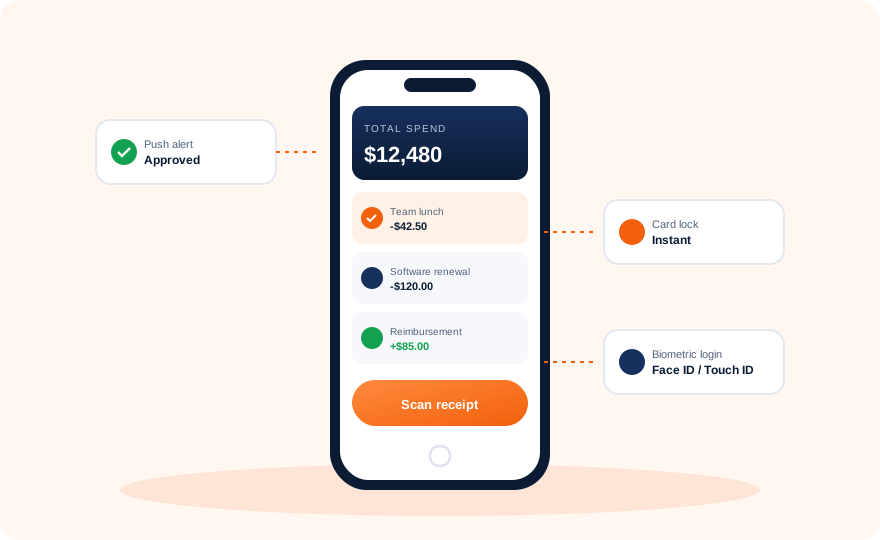
The BILL Spend & Expense app is where day-to-day spend actually happens: receipt photos, instant alerts, approvals, and card lock live here.
| Problem | Likely cause | Fix |
|---|---|---|
| "Account not found" | Wrong sign-in page or email typo | Use the official BILL Spend & Expense portal and the exact email registered with Divvy. |
| 2FA code rejected | Clock drift on authenticator app | Sync the authenticator app's time, or use push approval instead of codes. |
| SSO loop or blank screen | Stale browser session | Open a private window, sign in again, and clear cached identity-provider cookies. |
| Card declined after login | Limit reached or merchant blocked | Check the card's limit and merchant controls with your administrator. |
| Still locked out | Account lock after failed attempts | Wait 15 minutes, reset your password, or ask a workspace admin to unlock you. |
Learn what the rebrand changed, or dig into the card that sits in your wallet.